A dirty mouse pad can feel rough and make tracking inconsistent, but pads are not all washable. The first decision is whether you have ordinary fabric and rubber or an accessory with electronics, coatings or charging hardware.
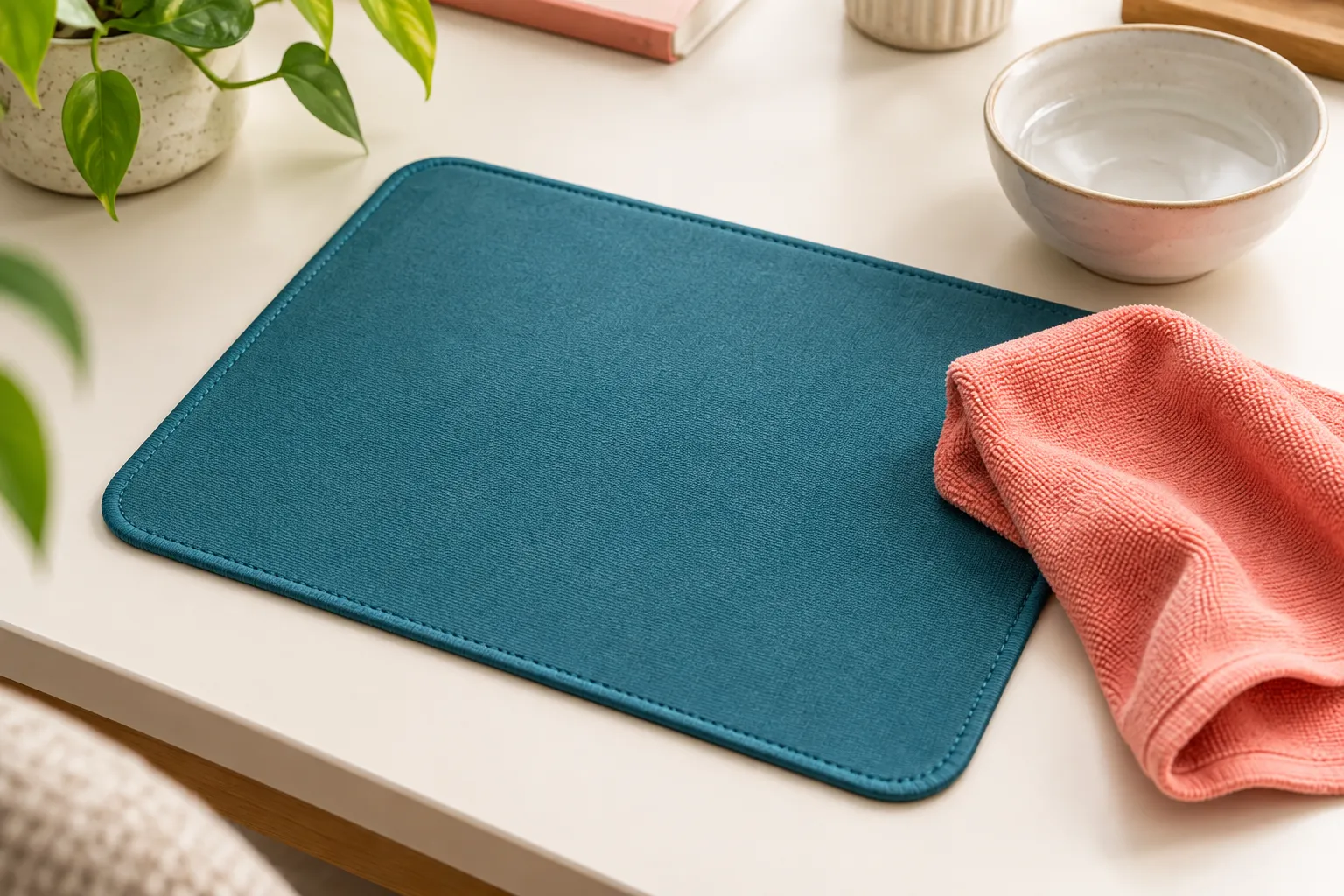
Check the maker’s instructions, remove loose dust and wipe with a lightly damp lint-free cloth. Only hand-wash a plain pad if its maker allows it. Keep electronics dry and air dry completely before reconnecting or using.
Go straight to the stepsYour project helper
Follow the steps and check them off as you go →Before you begin
Unplug illuminated or charging pads before cleaning. Do not submerge them. Avoid bleach, strong solvents, aggressive scrubbing, hair dryers and machine washing unless the exact product instructions permit them.
What you’ll need
- Lint-free microfiber cloth
- Water
- Optional maker-approved mild cleanser
- Flat drying space
Let’s do this
Step by step
- 01
Identify the construction
Look for a cable, control pod, charging surface or stitched lighting edge. Treat any electronic or unfamiliar coated pad as wipe-clean until its manual says otherwise.
- 02
Remove dry debris
Brush crumbs off gently or use a dry microfiber cloth. Clear the desk underneath too, so grit does not immediately transfer back onto the clean underside.
- 03
Wipe a small test area
Lightly dampen the cloth rather than pouring water onto the pad. Test near an edge and wipe gently in small circles. Keep liquid away from seams, connectors and control housings.
- 04
Wash only if permitted
For a plain washable pad, use the maker’s recommended hand-cleaning method and cleanser. Rinse away residue without stretching the backing. Do not assume another brand’s washing advice applies to yours.
- 05
Dry flat and retest
Press out surface moisture with a towel without wringing. Air dry flat, checking the underside as well as the surface. Reconnect only when fully dry, then test tracking before changing mouse settings.
Checks stay on this page while you work and reset when you leave.
Separate cleaning from tracking setup
Test the same mouse on the clean dry pad before changing sensitivity or calibration. This keeps you from changing several things at once and losing track of what helped.
Know when to replace it
A separating rubber base, deeply worn surface or damaged cable is not fixed by more washing. Choose a replacement size and material that fit the desk and sensor.
A quick final check
- Identify the construction
- Remove dry debris
- Wipe a small test area
- Wash only if permitted
- Dry flat and retest
Common questions & sticking points
Can an RGB pad go in the sink?
No. Keep its electronic parts dry and follow its wipe-clean directions.
Why does it still feel slippery?
Cleanser residue or a worn surface may be responsible. Remove residue only using a permitted method; do not scrub through the surface coating.
Sources & further reading Optional
References used to check this guide. Follow your product’s own safety instructions where its design differs.
Last source check: September 24, 2026